Open the Safari menu
Open leximint.net in Safari. Tap the three dots (…) at the bottom right. This opens the menu in the next image.
Open LexiMint in another tab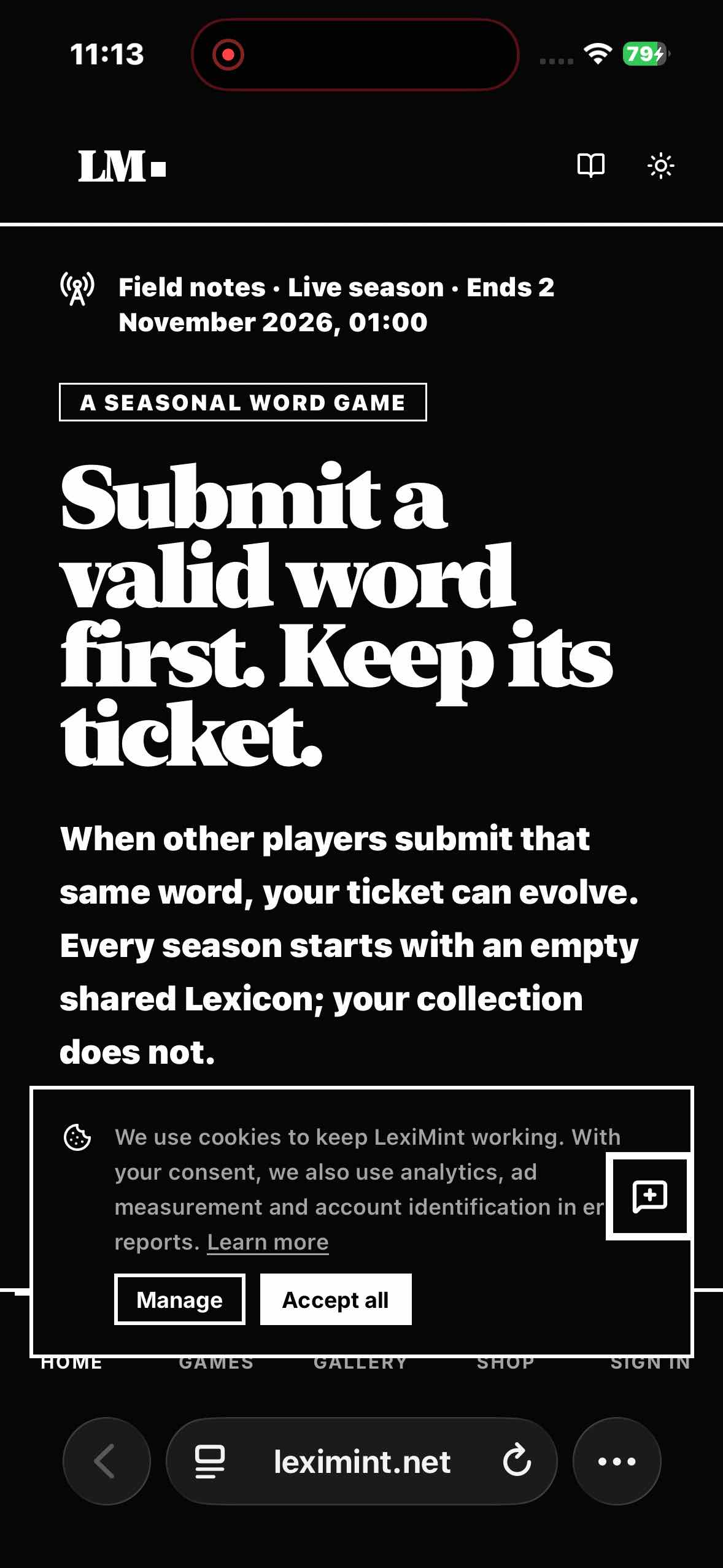
Put the game on your Home Screen. Open it from its own icon, alongside your other apps. No app store needed.
Choose the phone you want to set up.
Open Safari. If you're reading this inside WhatsApp, Instagram or another browser, copy leximint.net and open it in Safari.
Captured on iPhone 15 with iOS 26.6. The final Home Screen image was edited to show familiar apps. Tap an image to open the original.
Open leximint.net in Safari. Tap the three dots (…) at the bottom right. This opens the menu in the next image.
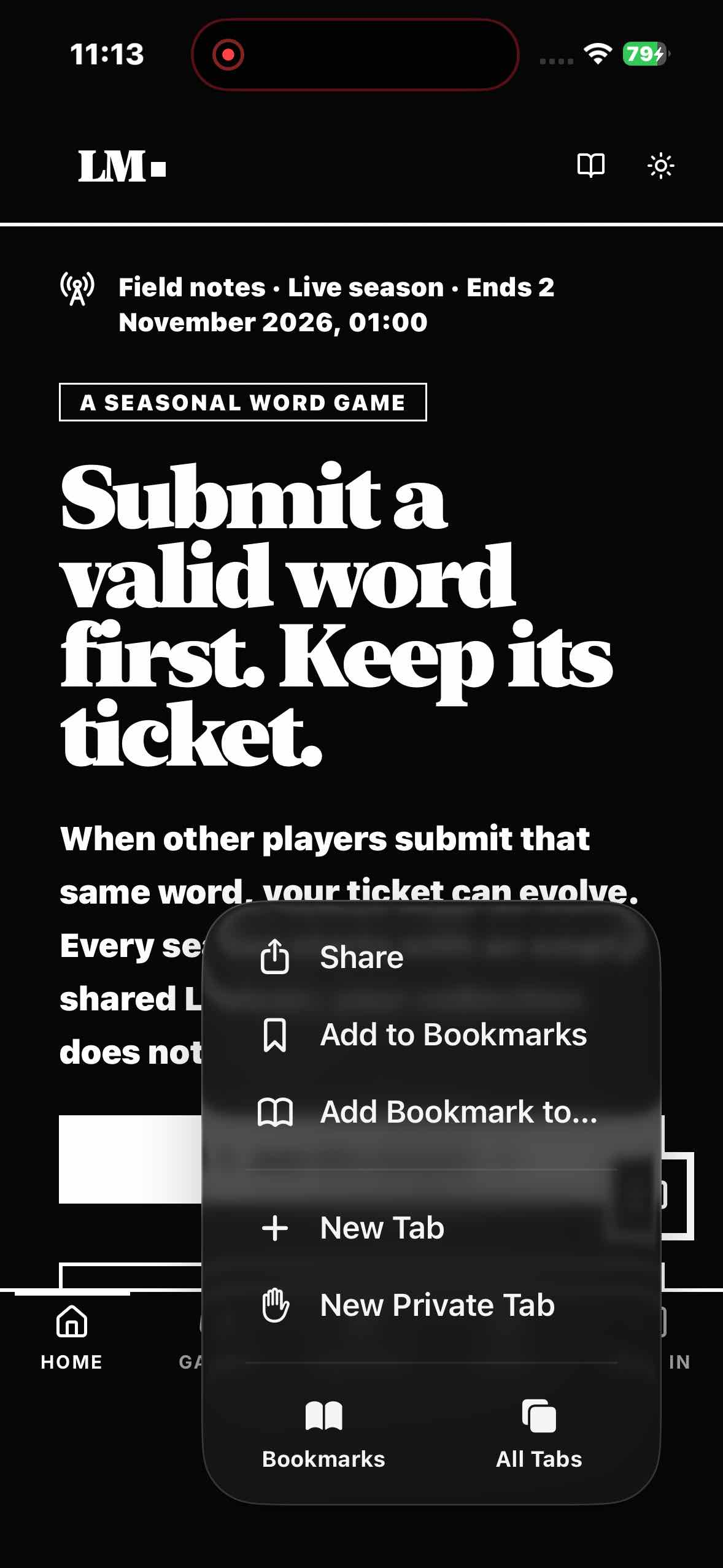
Open LexiMint in another tabTap “Share” at the top of the menu. If Safari already shows the Share icon, you can tap it directly.
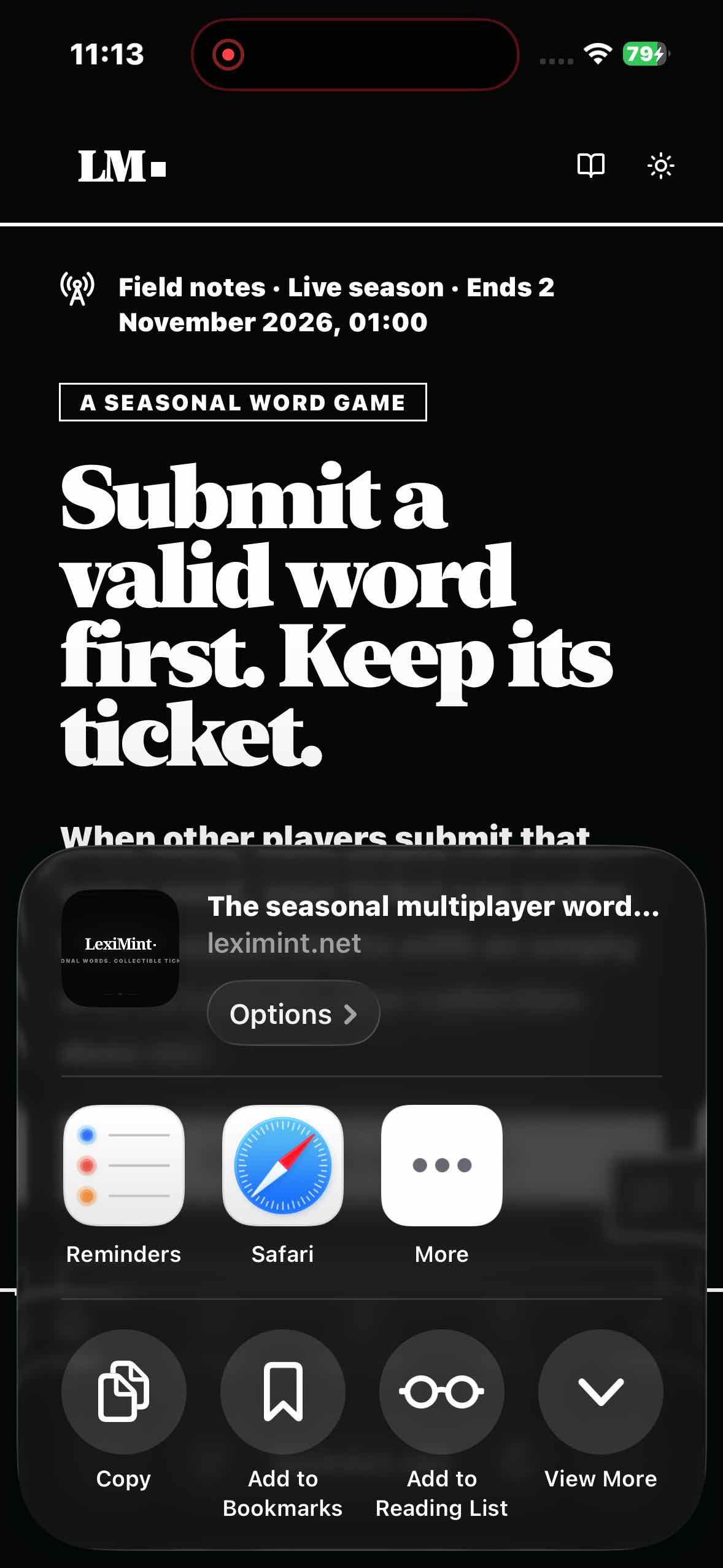
Tap “View More” in the Share sheet or swipe it upwards. “Add to Bookmarks” is a different action.
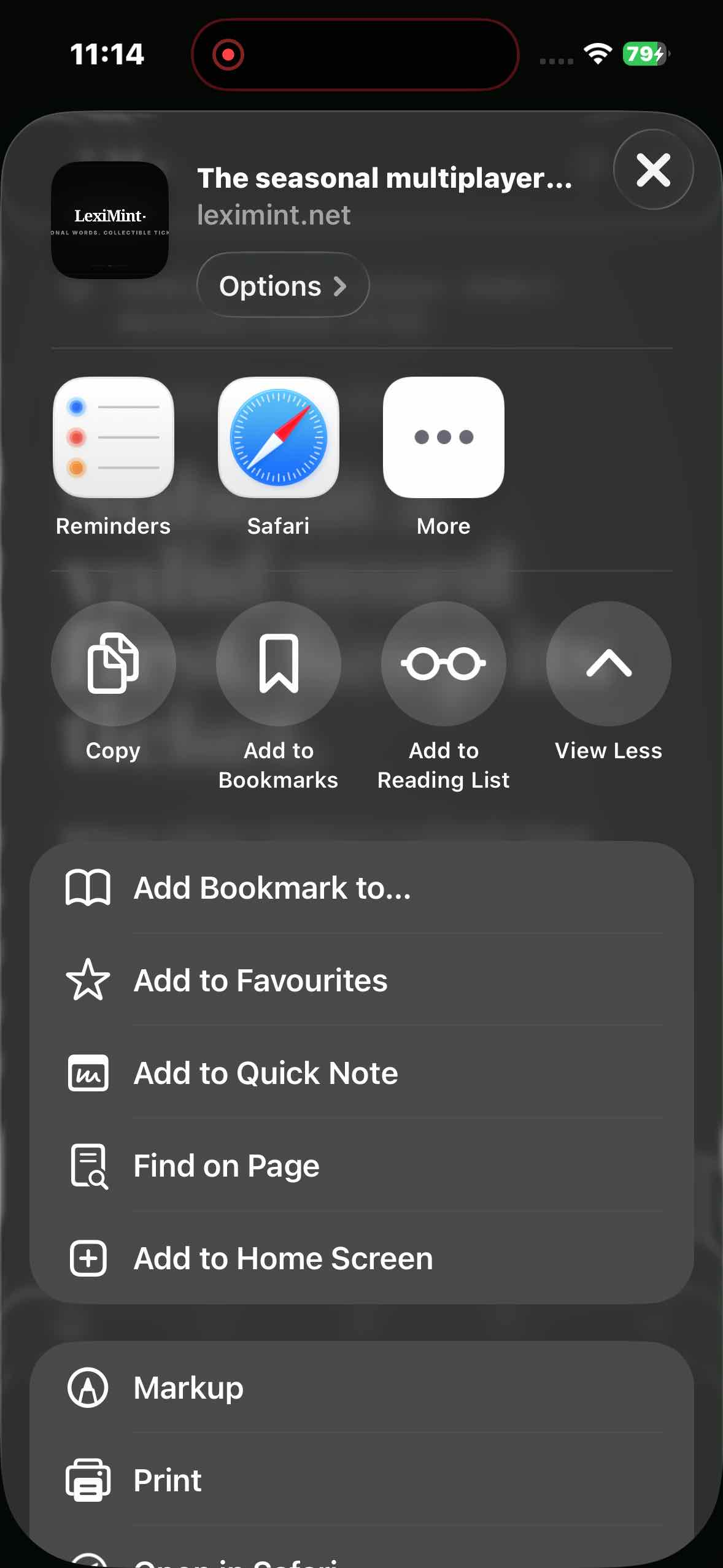
Scroll down the list and tap the highlighted action.
Keep “Open as Web App” switched on, then tap “Add” in the top right.
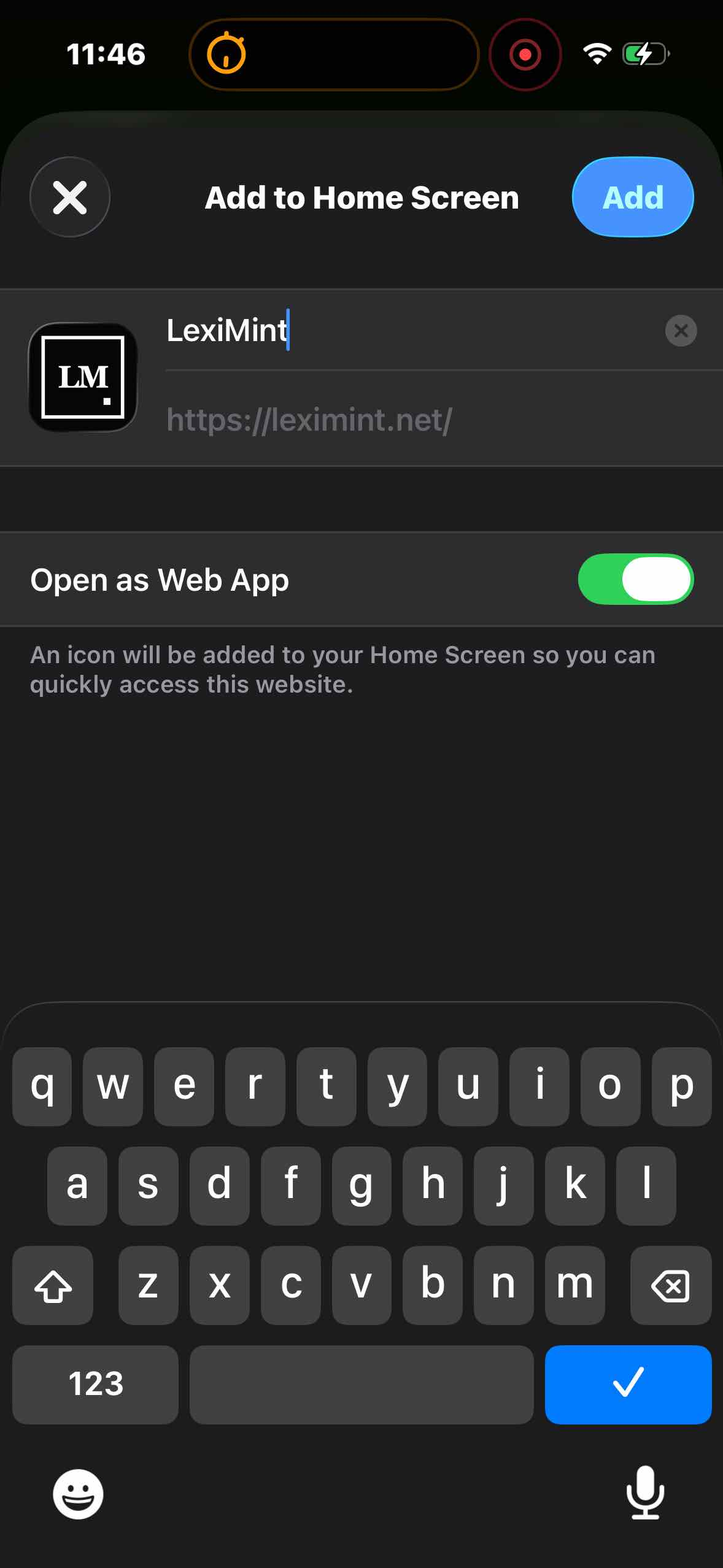
Return to your Home Screen and tap the LexiMint icon. You can launch the game from there from now on.
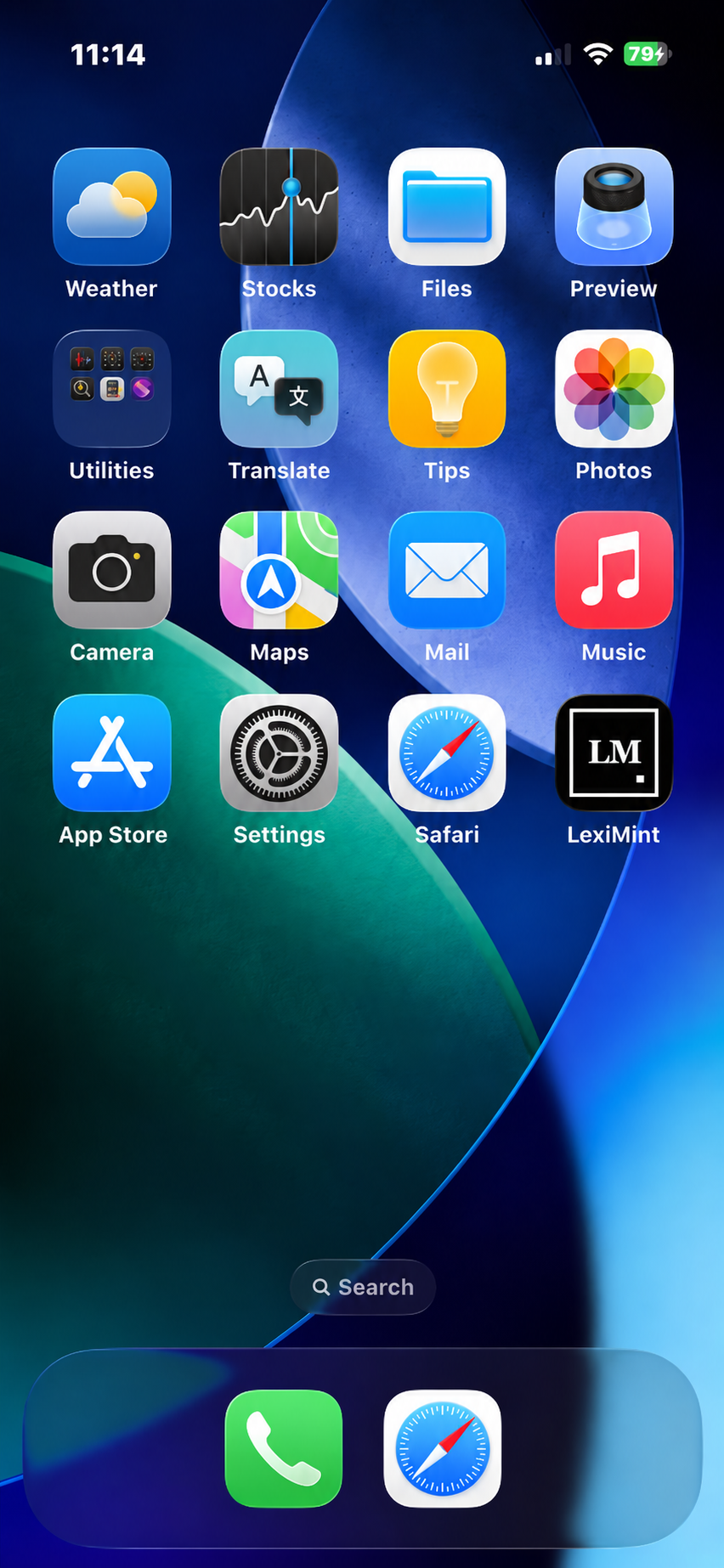
Open LexiMint from its new icon whenever you want to play. The game still needs an Internet connection.
Sign in to LexiMint, open Settings and find “Important reminders”. Tap “Enable this device”, then “Allow” when your phone asks.
On iPhone, open LexiMint from the icon you just added to your Home Screen before enabling them.
Open settingsCan't find “Add to Home Screen”? Scroll to the bottom of the Share sheet, tap “Edit Actions” and add it. Make sure you're in Safari, not an in-app browser.